
Field Manuals How To Start The Machine Lesson II
Start The Data Pipeline
Choose where Moneyball should read from, connect the source, and get ready to teach the machine what your sales data means.
Part I
Open Data Pipeline
The first step to getting Moneyball powered up is connecting it to where your sales data lives.
For most teams, that is inside a CRM. For others, it is inside a set of spreadsheets. Moneyball supports both approaches.
In this lesson, we are only connecting Moneyball to where the data resides and explaining a few things worth knowing so your security team can feel completely calm. In the next lesson, we get into the nitty-gritty of teaching Moneyball how to read the sales information it finds there.
Open Data Pipeline, found inside of Admin, then choose whether your sales data comes from a CRM or from spreadsheet files.
Part II
Connect A CRM
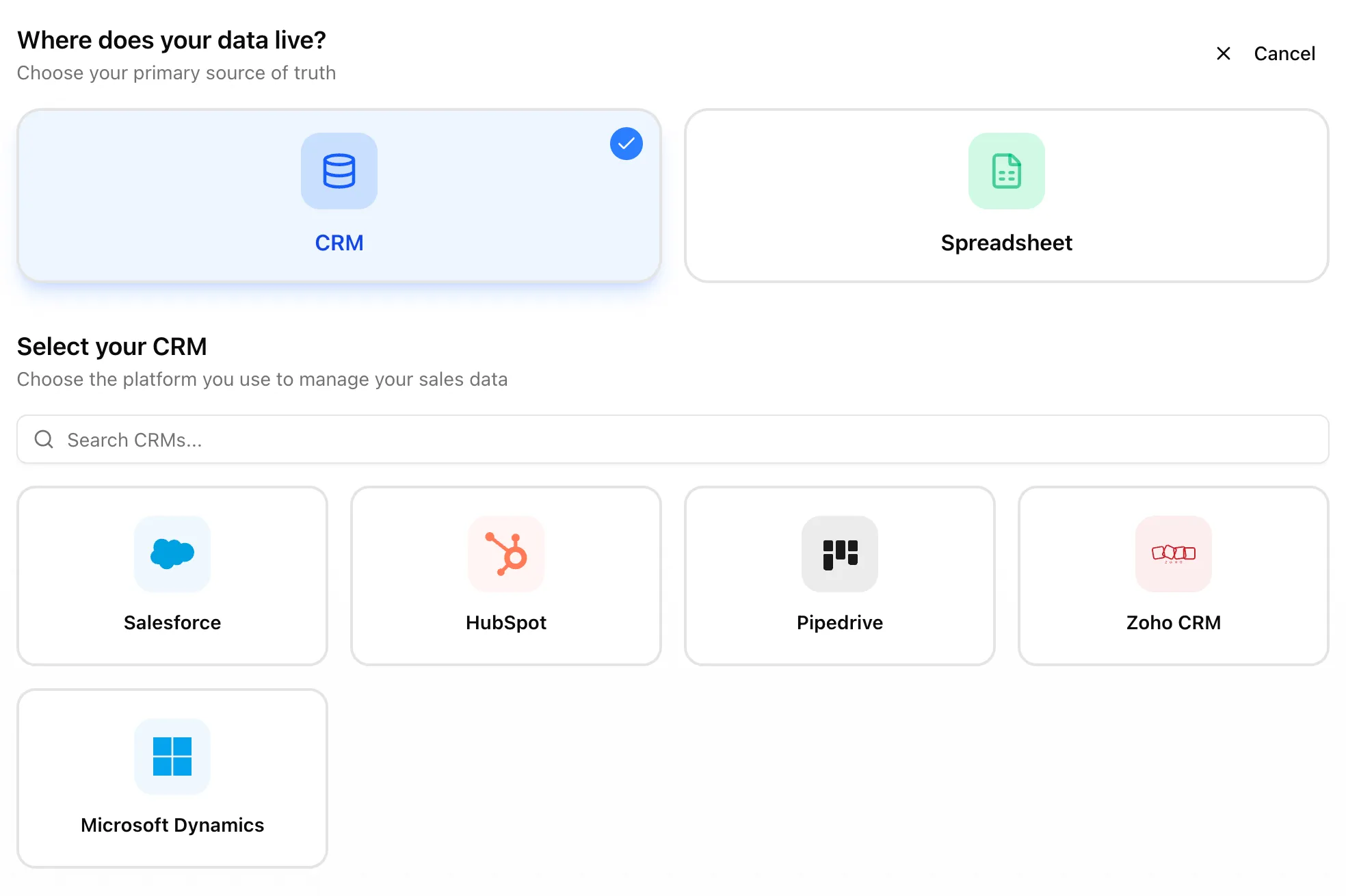
So, your organization stores its sales data inside a CRM. Wonderful. Currently, Moneyball supports quite a few of them:
-
 Salesforce
 -
 HubSpot
 -
 Pipedrive
 -
 Zoho CRM
 -
 Microsoft Dynamics
If you use a different CRM and would like to use Moneyball, you still have a couple of paths. You can export the data Moneyball needs and use the spreadsheet-file path for now, or you can contact us and ask about adding support for your CRM.
The CRM connection process is mostly a few button clicks:
- Choose your CRM
Select the CRM your team uses from the provider list.
- Authorize Moneyball
Please authorize the CRM connection through a user that can read the accounts, deals, sales reps, and fields Moneyball needs. If the connected user cannot see the data, Moneyball cannot read it.
A quick note for Salesforce and Dynamics: some CRMs may first ask for an instance or resource URL. If you are not sure what that is, the dialog should help. Otherwise, ask your CRM admin. They should know exactly what Moneyball is asking for.
- Choose standard or manual setup
If your CRM mostly follows the standard way that provider expects sales data to be stored, choose Use Standard CRM Setup. Moneyball will try to fill in as much of the Data Pipeline as it reasonably can.
If your CRM is highly custom, choose the manual path. Either way, the next lesson will walk through reviewing the objects and fields before anything is published.
For The Security-Minded CRM Admin
Moneyball is read-only. It reads the data you authorize and does not write back to your CRM.
If your CRM lets you enforce read-only access from your side, we recommend doing that too. Salesforce, in particular, gives teams strong control over user permissions and permission sets. A dedicated read-only integration user can make your security team much happier because the read-only boundary exists both in Moneyball and in your CRM.
Part III
Connect Spreadsheet Files
If your sales data is coming from spreadsheets, Moneyball connects to the cloud provider where those files live.
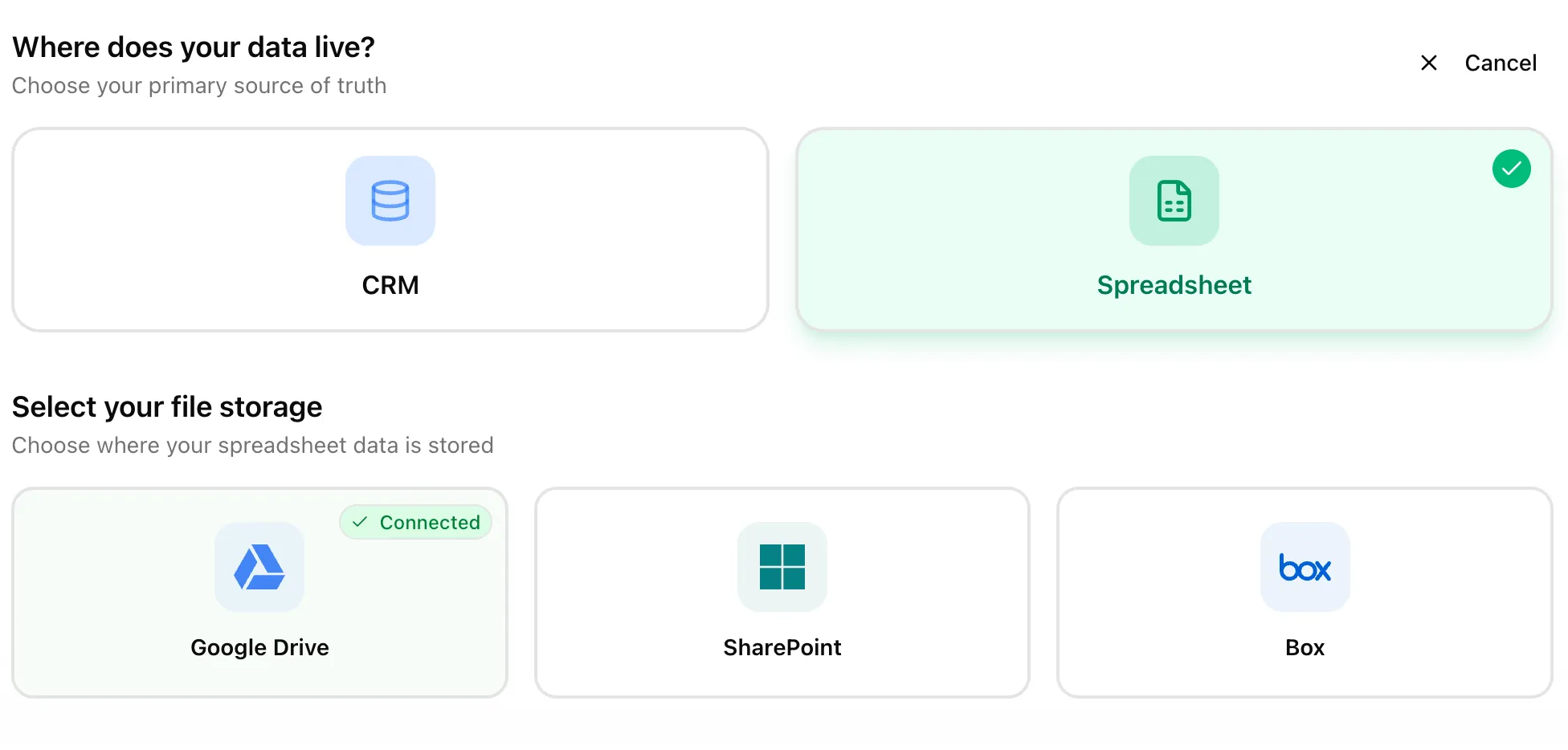
Moneyball currently supports:
-
 Google Drive
 -
 SharePoint
 -
 Box
Box
If your data is stored in a different cloud provider you would like us to support, please reach out to us.
Moneyball does not use direct uploads for Data Pipeline. The files need to live in a supported cloud provider so that when data needs to be updated, you can simply update the source files in that provider. Moneyball will pick up the latest version during its nightly refresh.
The file connection process looks like this:
- Choose the file provider
Select the provider where your files live.
- Authorize the account
Connect with an account that can access every file Moneyball will need. If the account can see the deals file but not the accounts file, setup will stall later for reasons that are technically accurate and emotionally annoying.
- Return to Data Pipeline
At this point, you are only connecting the provider. You will choose the actual Deals, Accounts, Sales Reps, and optional Deal Stage History files in the next lesson.
Spreadsheet preparation also belongs in the next lesson. For now, the job is simply to connect the file provider Moneyball should read from.
Part IV
When The Source Is Connected
After the CRM or file provider is connected, you should be back in Data Pipeline with a source available for setup.
Next up, we will map — or translate — the information inside your CRM or spreadsheets into the language Moneyball speaks.