
Field Manuals How To Start The Machine Lesson III
Map The Data Moneyball Needs
Teach Moneyball which objects, files, and fields matter before you publish the first real configuration.
Part I
Feel Safe Before You Start Mapping
Data Pipeline is an editing room, not a trap door. Moneyball saves your changes into a draft configuration while you work. The active configuration is the version Moneyball is actually using to read your data.
That means you can click into objects, choose fields, inspect previews, try fallback values, and generally look around without worrying that one curious click will break the account for everyone. Your draft becomes active only when you publish it.
Mapping fields, grouping values, adding overrides, and setting fallbacks changes how Moneyball interprets the data it reads. It does not rewrite Salesforce, HubSpot, Pipedrive, Zoho CRM, Microsoft Dynamics, Google Drive, SharePoint, Box, or your source spreadsheets.
You are teaching Moneyball how to read the source. You are not rearranging the source itself.
If you would rather hand this mapping work to us, the Set It Up For Me service exists for exactly that. You can keep going with this lesson, or ask us to take the first pass and hand back a working configuration.
Part II
Teach Moneyball Your Sales Language
Open Data Pipeline. Once your source is connected, the page should look something like this.
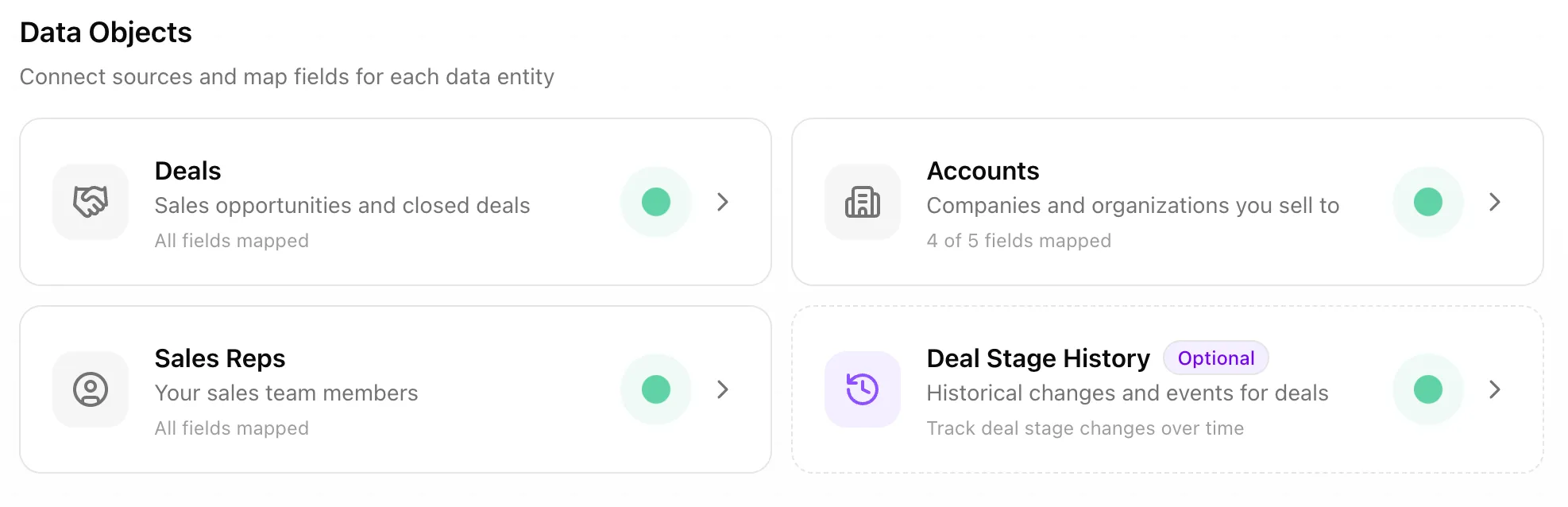
These cards are the main doors into mapping:
- Deals. The sales opportunities and closed deals.
- Accounts. The companies or organizations you sell to.
- Sales Reps. The people who own or work those deals.
- Deal Stage History. The stage changes Moneyball needs when you are using spreadsheets/files. CRM setups have Deal Stage History handled automatically.
Next, click one of those cards. Inside each object, the first job is choosing where those records live. In this example, we are inside Deals.
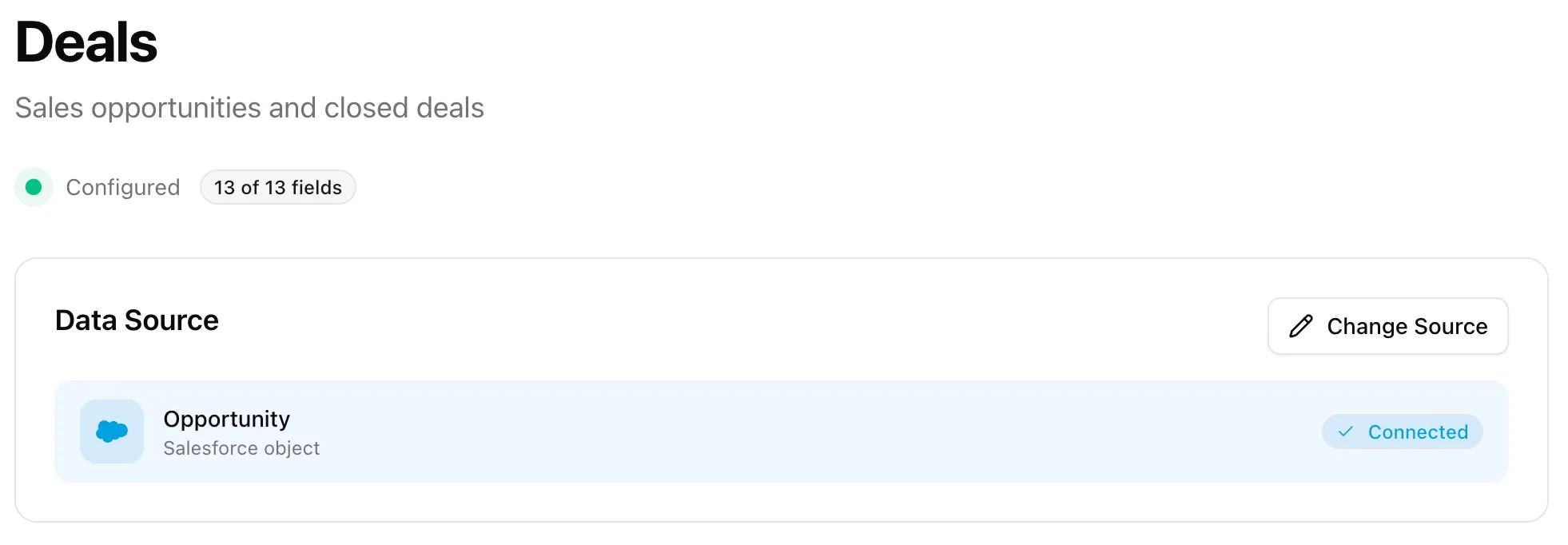
Deals all come from one selected source. In a CRM, that source is usually an object called Opportunities, Deals, or whatever your team uses for sales opportunities. In a spreadsheet setup, that source is the CSV file, or ZIP file of CSVs, where each row is a deal.
The same idea applies to the other cards. Accounts might come from Accounts, Companies, or an accounts CSV. Sales Reps might come from Users, Owners, or a reps CSV. Moneyball does not need you to rename any of that. It just needs you to point at the right place.
Using a spreadsheet? Start with one boring file per object when you can: one file for deals, one for accounts, one for sales reps, and, if possible, one for deal stage history.
Part III
How To Map Any Field
Once you have selected a source, the field mapping screen works the same way across Deals, Accounts, Sales Reps, and Deal Stage History. We will use Lead Source as the example, inside the Deals object, because it is common, useful, and often a little messy.
1. Choose the source field
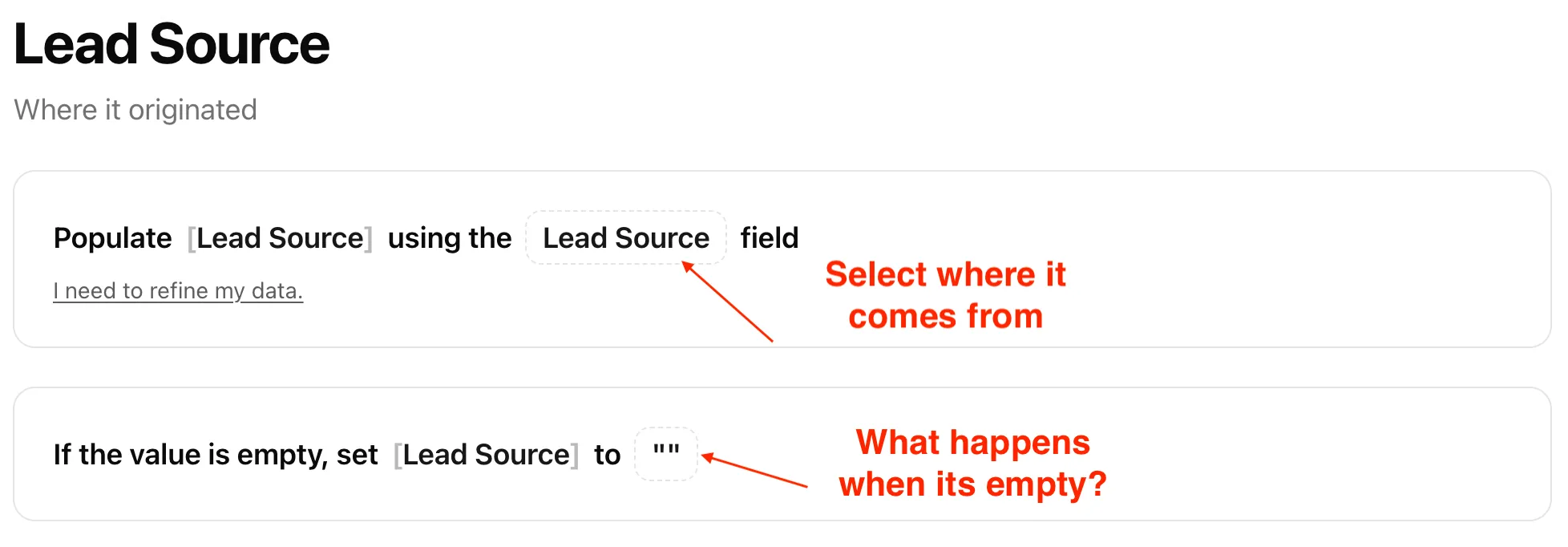
At the top of the field page, Moneyball gives you a sentence: populate this Moneyball field using that source field. Your first job is to choose the source field.
Click the source field selector to open the list of fields Moneyball found in the object or file you selected.
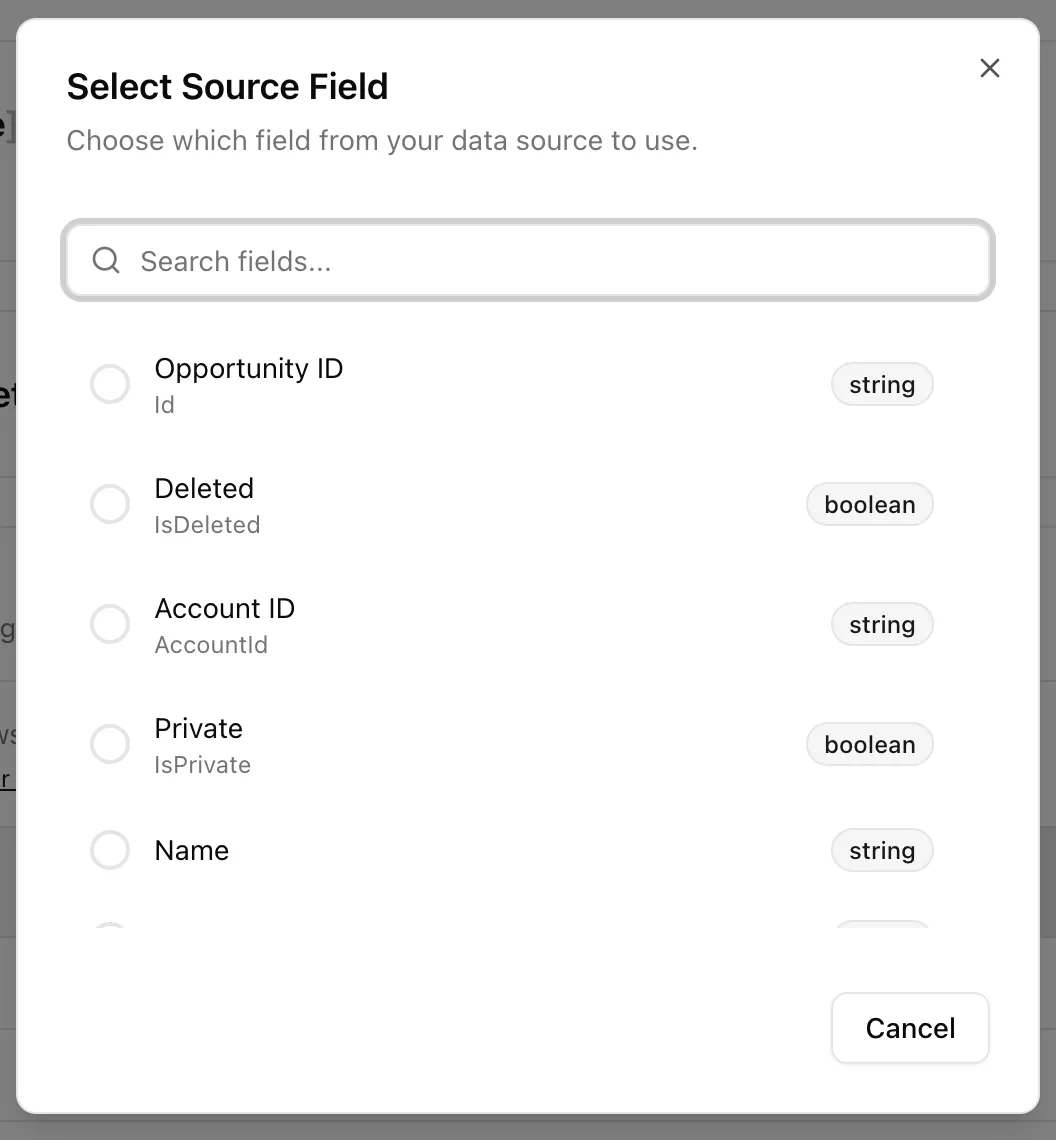
If you are mapping Lead Source, choose the field your team actually uses to explain where the deal came from. It might be called Lead Source, Original Source, Campaign, Referral Source, or something else entirely. The label matters less than the meaning.
2. Set the fallback for empty values
The same sentence also lets you decide what Moneyball should use if the source value is empty. For Lead Source, leaving the fallback blank is acceptable. Setting it to something like Unknown or No Lead Source Found is also acceptable if that will make reporting easier for your team.
Use fallback values to make missing data clear. Do not use them to pretend important data exists when it does not. A useful fallback says, “we do not know.” A bad fallback silently tells a story that is not true.
3. Check the preview
The preview panel shows how the mapping is working before you publish. The left side shows the incoming source data. The right side shows what Moneyball receives after the source field, fallback value, renamer, and overrides have all had their turn.
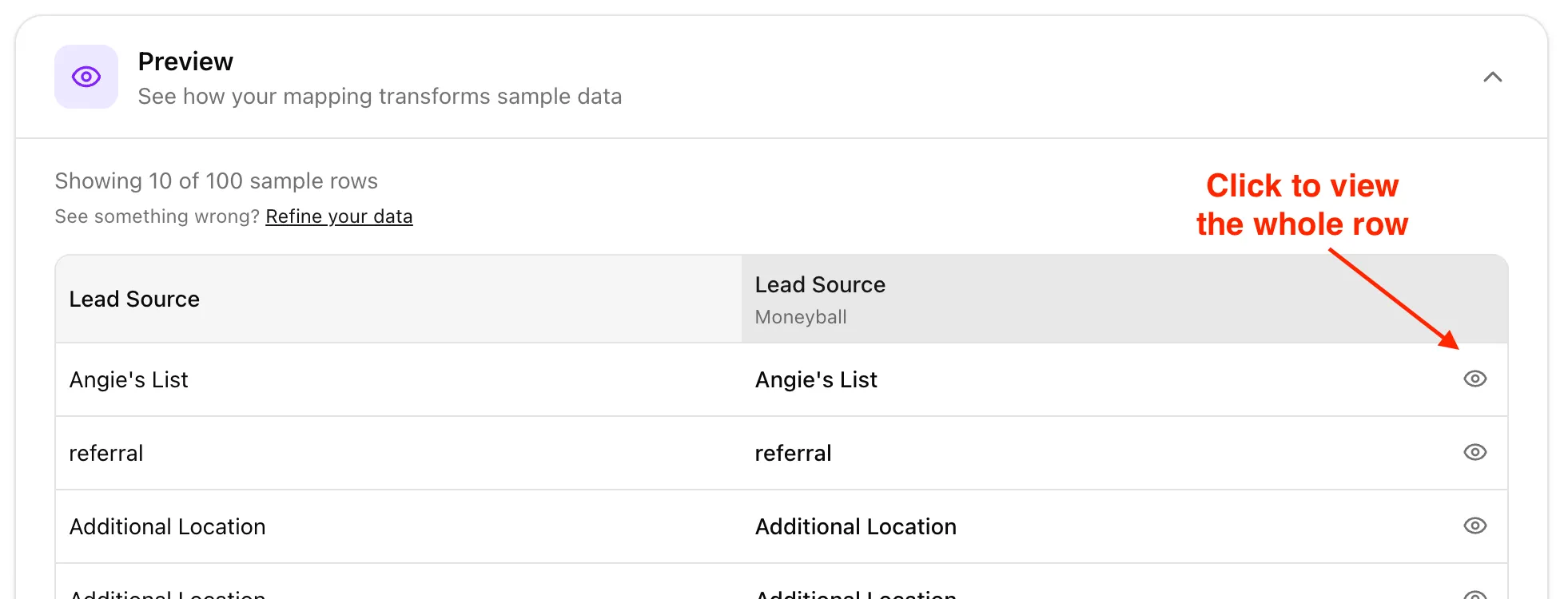
Use preview to sanity-check the mapping. If the output looks wrong, you may have picked the wrong source field, chosen the wrong fallback, or need one of the refinement tools below.
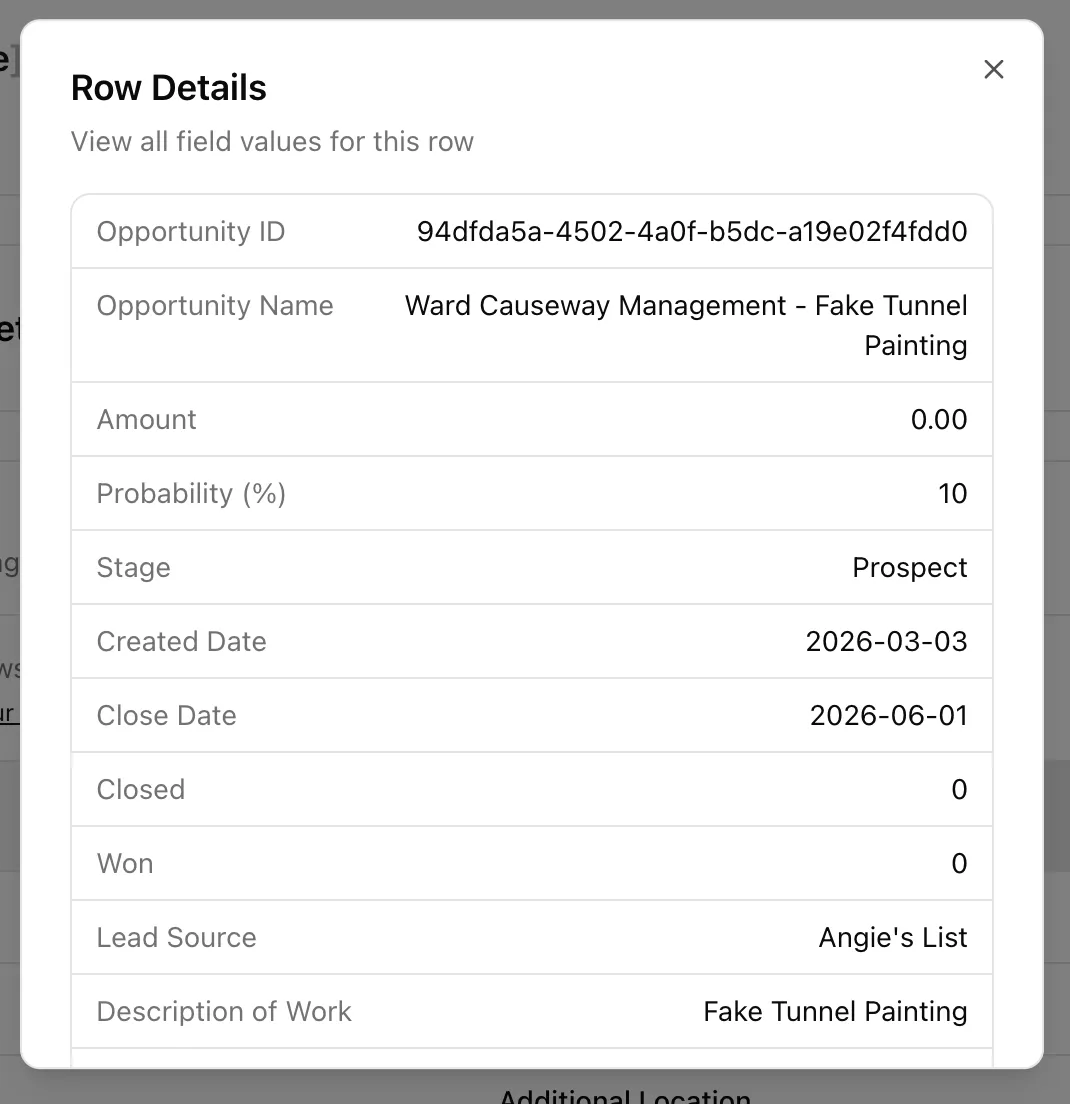
If you need more context, click the eye button to view the whole row. This is useful when you are not sure what a field means and want to inspect nearby data without bouncing back to the CRM or spreadsheet.
4. Open the refinement tools when the source is messy
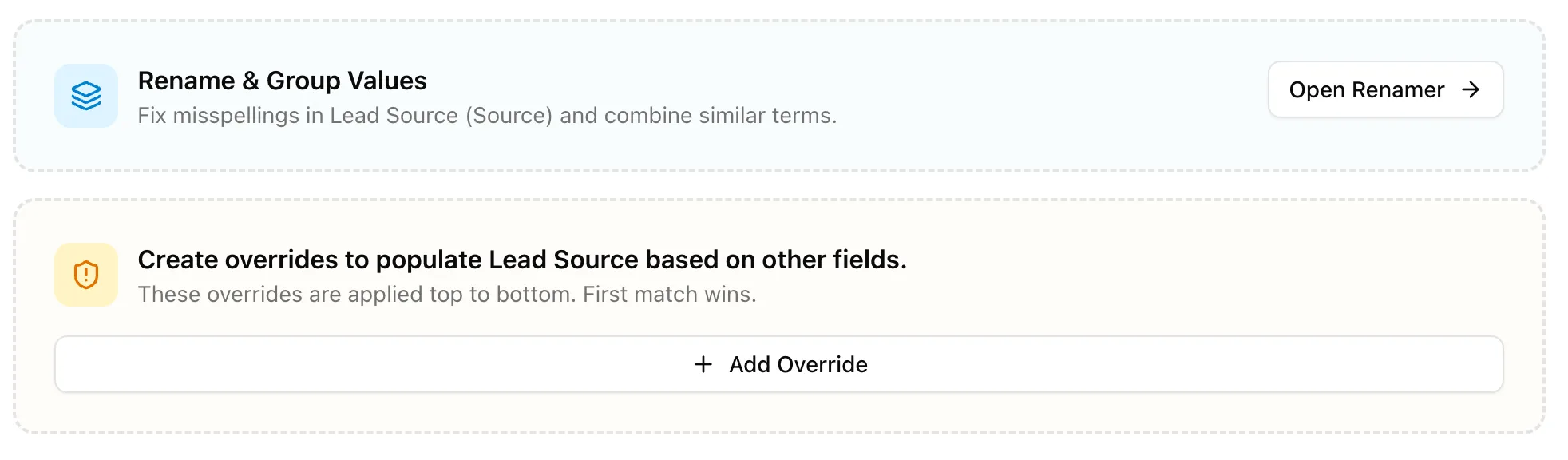
Sometimes the source field is mostly right, but not clean enough to use as-is. Click I need to refine my data when you need Moneyball to group values, rename values, or build a field from rules.

That opens the refinement area. The two big tools are Renamer and Overrides.
Part IV
Rename And Group Values
The Renamer is for source values that should mean the same thing in Moneyball.
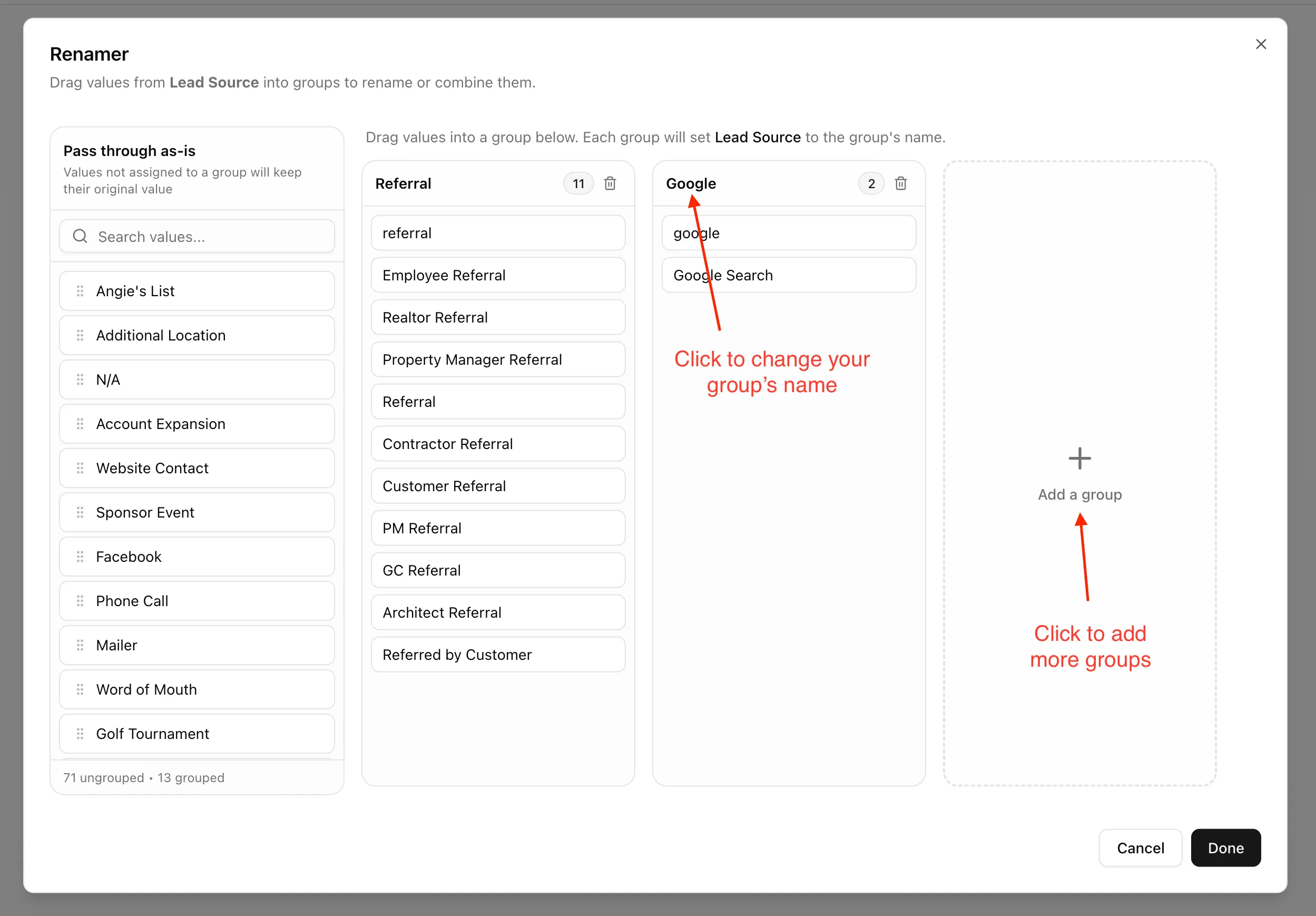
Think of the left column as the values Moneyball found, and the groups as the values you want Moneyball to use instead.
For example:
- If Employee Referral, Realtor Referral, and Contractor Referral all sit inside a group named Referral, Moneyball outputs Referral for any deal with one of those source values.
- If Google Search sits inside a group named Google, Moneyball outputs Google.
- If Trade Show stays in the left column and is not added to a group, Moneyball leaves it alone and outputs Trade Show.
Use the Renamer when the source field is basically the right field, but the values need tidying. You are not changing the source system. You are telling Moneyball how to read its variations.
Heads up: The first time you use the Renamer, it may only show sample values from your CRM or spreadsheet. Once you complete setup and Moneyball reads the full database, you can come back and see the full set of values Moneyball found. This lets you make progress now and refine later.
Part V
Override Values With Rules
Overrides are for cases where one source field does not tell the whole story. An override says: if these conditions match, set this Moneyball field to this output.
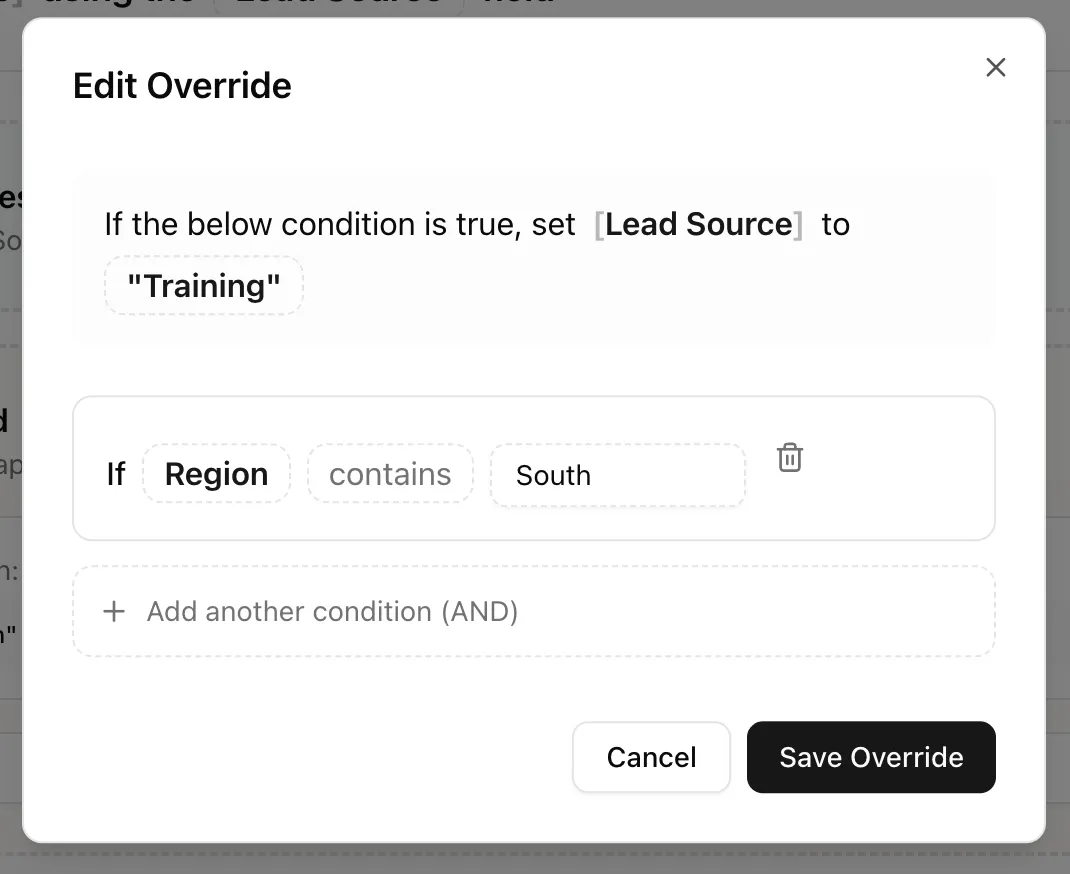
The output can be static text, a value from another field, or a value extracted from another field with a regular expression. Most teams should start with static text or value from another field. Regex is there when you need it, not because anyone is trying to make your Tuesday more dramatic.
The condition is where you tell Moneyball when the override should apply. You choose a source field, choose a condition like contains or is not empty, and enter the value to check for.
Overrides run from top to bottom, and the first matching override wins. If you add multiple overrides, put the most specific rules above the broader ones. You can reorder rules by dragging them or using the move buttons.
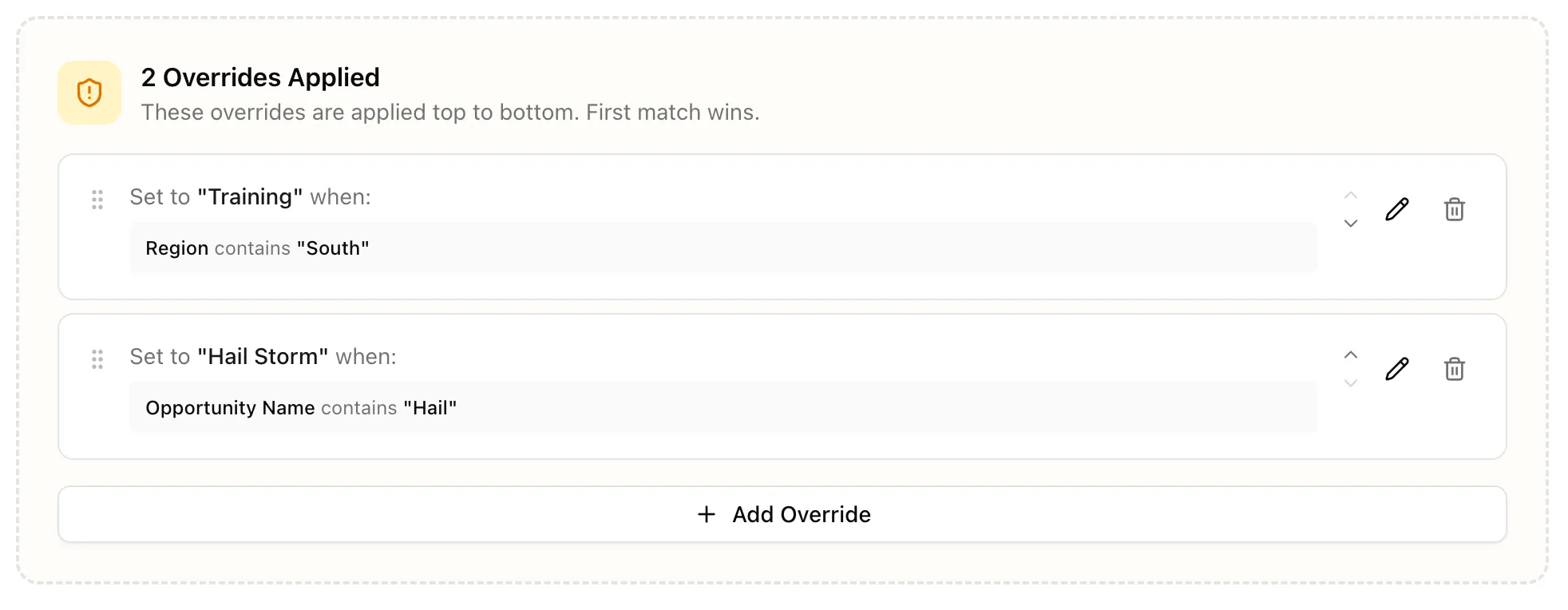
In the example above, we have two overrides for Lead Source:
- If the CRM field Region is found on the deal and contains South, Moneyball sets Lead Source to Training. Maybe southern-region work usually comes from training events, and the CRM never captured that cleanly.
- Otherwise, if Opportunity Name contains hail, Moneyball sets Lead Source to Hailstorm.
- If neither override matches, Moneyball simply outputs whatever was stored in the source field you selected at the top of the field-mapping tool. In this example, that is the normal Lead Source field.
You can do a lot of quick cleanup this way if you want to. Moneyball does not require it, but it can make the output cleaner without making anyone edit the CRM.
Part VI
Map Deals
Now that we have done the long and character-building work of learning how field mapping works, let’s walk through what you are looking to select for each field Moneyball asks for.
We will start with Deals because Deals are the main event. Click Deals from Data Pipeline, choose the source that contains one row per deal or opportunity, and you should see the Deal fields Moneyball wants you to map.
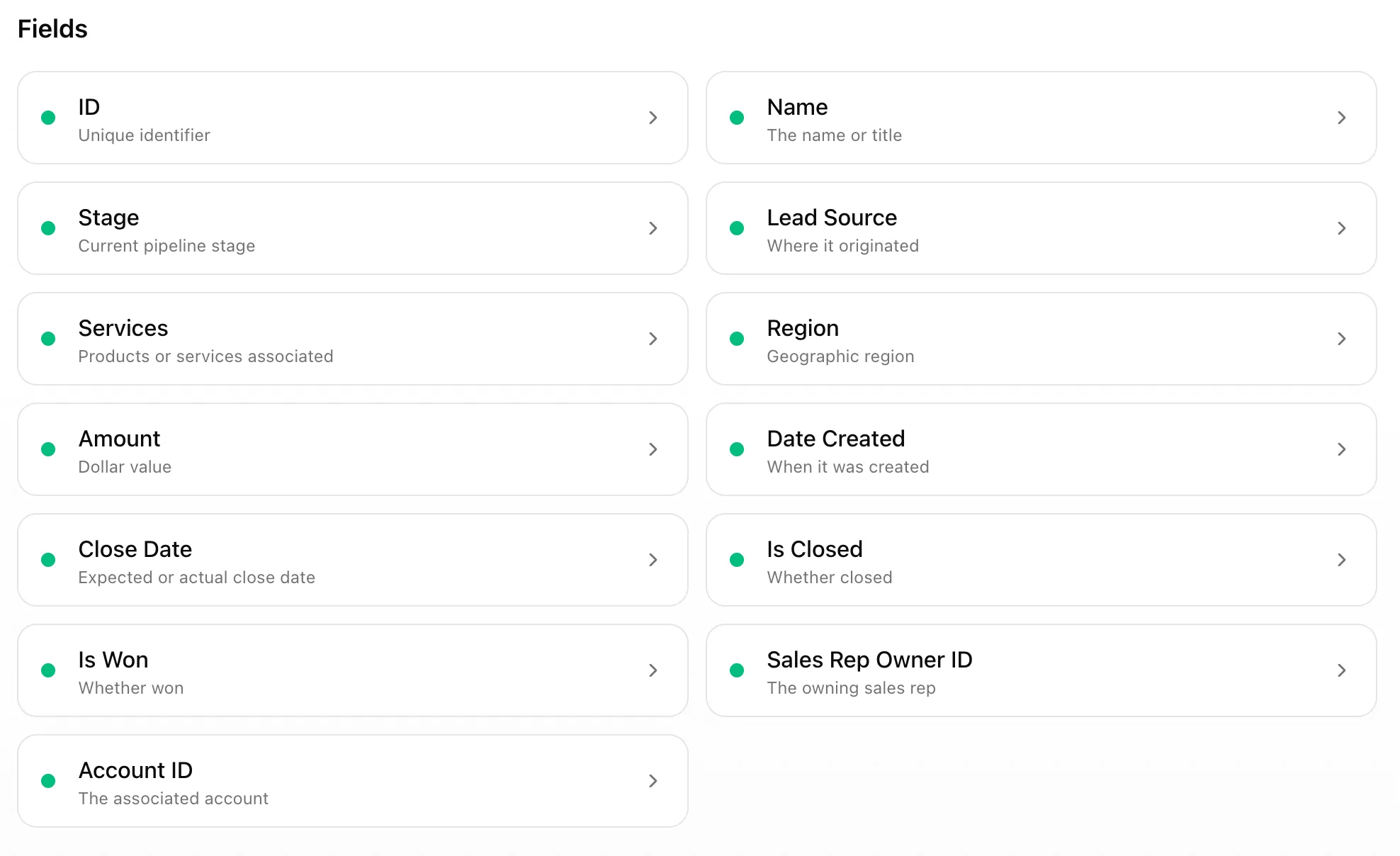
Map the fields Moneyball needs
ID
ID is the unique identifier for the deal or opportunity. Look for a system ID, not the deal name. Good candidates are Opportunity ID, Deal ID, Record ID, or simply ID.
This field matters because other data can point back to it. Deal Stage History uses Deal ID. Separate services sources use Deal ID. If the ID changes every export, Moneyball cannot reliably keep the story connected.
Name
Name is the human-readable name of the opportunity. This is what people recognize when they are looking at a deal in Moneyball.
Stage
Stage is the current pipeline stage of the deal. This might be Prospecting, Proposal, Contract Sent, Closed Won, Closed Lost, or your company’s version of those ideas. You do not need to rename every stage here. Stage categorization happens after Moneyball reads the data.
Lead Source
Lead Source explains where the deal came from. This is a good field to preview carefully because teams often use several labels for the same channel. If the values are messy, use the Renamer after you choose the source field.
Services
Services are the products, services, or offerings attached to the deal. This field has a couple extra options because services tend to be the most complicated part of every company’s data. More on that later in this lesson.
Region
Region is the geography, territory, market, or operating region for the deal.
Amount
Amount is the deal value. Choose the field that represents the revenue or contract value your team uses for pipeline reporting. If you have several amount fields, pick the one your sales team treats as the main deal amount.
Date Created
Date Created is when the deal entered the system. This is usually Created Date, Created At, Opportunity Created Date, or something similar.
Close Date
Close Date is the expected or actual close date. Use the field your team relies on for pipeline timing.
Is Closed
Is Closed tells Moneyball whether the deal is finished. The mapped result should be a true/false-style value. Moneyball treats 1, true, yes, and Y as true; capitalization does not matter. Anything else, including a blank value, is treated as false.
Is Won
Is Won tells Moneyball whether the finished deal was won. The mapped result follows the same rule: 1, true, yes, and Y count as true; anything else counts as false.
Sales Rep Owner ID
Sales Rep Owner ID connects the deal to the rep who owns it. This is usually the CRM’s unique ID for that rep, often a series of letters and numbers. Use an ID when possible, not a rep name.
Account ID
Account ID connects the deal to the company or organization. This should match the ID you map in the Accounts object.
Part VII
Map Accounts
Click Accounts from Data Pipeline. Choose the source that contains one row per company, customer, or account, and you should see the Account fields Moneyball wants you to map.
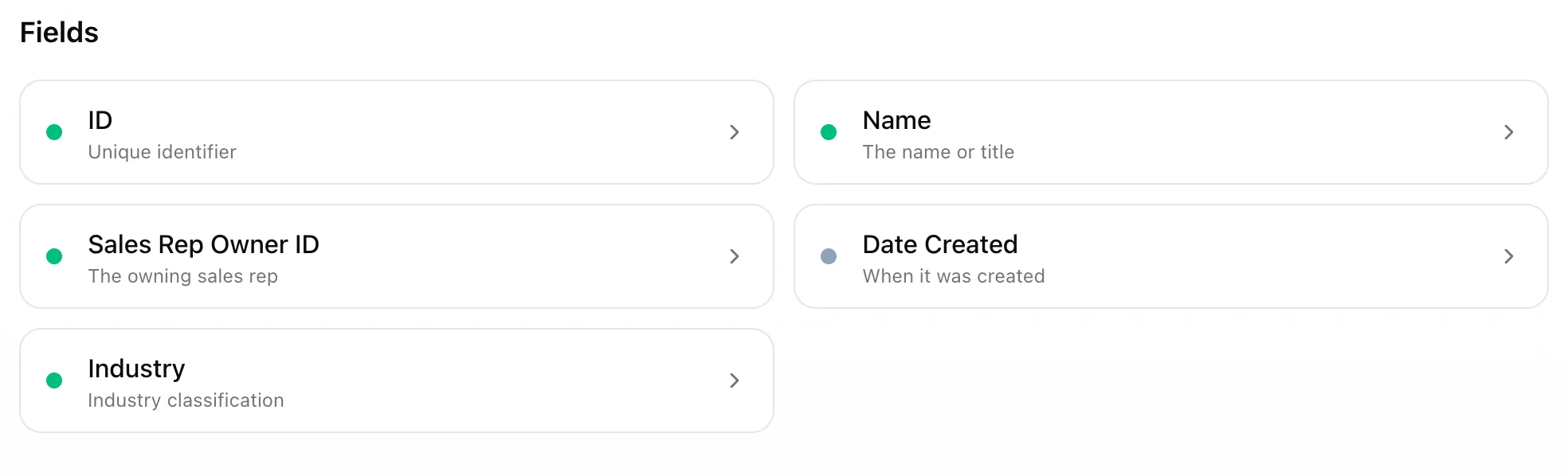
ID
ID is the unique identifier for the company or account. Use the CRM account ID or stable spreadsheet account ID. Do not use the company name as the ID unless it is truly the only stable identifier you have.
Name
Name is the human-readable company or organization name.
Sales Rep Owner ID
Sales Rep Owner ID is useful when accounts have owners. This is usually the CRM’s unique ID for the sales rep who owns the account, often a series of letters and numbers.
Date Created
Date Created tells Moneyball when the account entered the system.
Industry
Industry helps Moneyball understand account segments by industry.
Part VIII
Map Sales Reps
Click Sales Reps from Data Pipeline. Choose the CRM users/owners object or the spreadsheet file that contains one row per rep, and you should see the Rep fields Moneyball wants you to map.

ID
ID is the unique identifier for the rep. This is the value Deals and Accounts should point to when they map Sales Rep Owner ID.
Name
Name is the human-readable rep name. Later, when you invite the team, you will link Moneyball users to the reps Moneyball discovered here.
Part IX
Map Deal Stage History
You usually only see Deal Stage History when you are using spreadsheets/files. CRM setups have Deal Stage History handled automatically.
If this card appears, choose the source that contains one row per stage movement. Do not fake stage history if you do not have it yet. Finish the core setup first; better history can come later.
Deal ID
Deal ID connects each history row back to the deal it belongs to. The values should line up with the deal IDs you mapped in Deals, even if this source calls the field something slightly different.
Stage
Stage is the pipeline stage recorded on that history row.
Date
Date is when the deal entered that stage or when the stage event occurred.
Part X
Handle Services
Services are often the messiest part of setup because every company stores products, services, packages, and line items a little differently.
In connected CRMs, services usually live in one of two places:
- A field on the deal or opportunity. This might be a text field, picklist, formula field, or multi-select field.
- A separate related object. For example, Salesforce often stores products on opportunities as Opportunity Products / Opportunity Line Items.
Moneyball asks how products are stored so it can show the right mapping path.
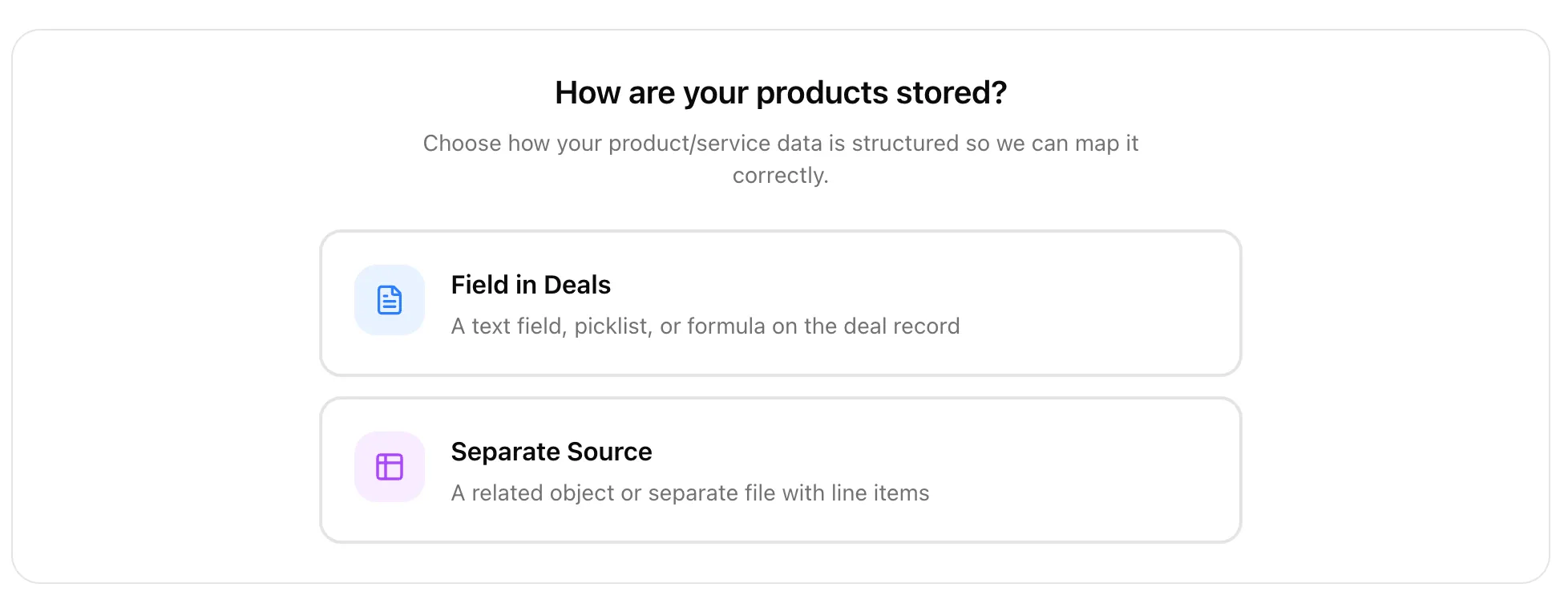
Services stored in a field
If services live on the deal, choose the deal field that contains the product or service name. If a single deal can contain multiple services in one field, tell Moneyball how to split them.
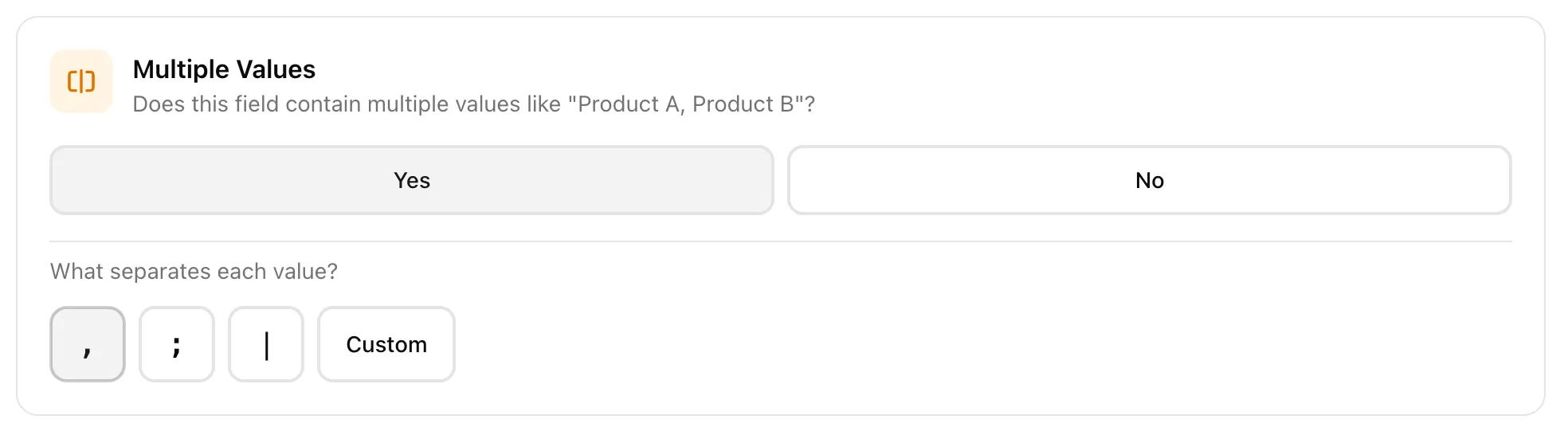
For example, if the field says:
Implementation, Training, Supportthen choose that the field has multiple values and use a comma as the separator. If your source uses a semicolon, pipe, or another separator, choose custom and enter the separator your file uses.
Services stored in a separate source
If services live in a separate source, choose the source that contains the service rows.

Moneyball needs three things for a separate services source: the source that contains the service rows, the field that links each service row back to a Deal ID, and the field that contains the product or service name. The Deal ID link is the important part. Without it, Moneyball can see services but cannot reliably attach them to the right opportunities.
Part XI
Review And Publish
When the required fields are mapped, Data Pipeline should tell you the setup is ready to publish. Publishing turns your draft configuration into the active configuration that Moneyball begins reading and processing.
You do not need perfection before the first publish. Publish a solid first configuration, let Moneyball read the source, and then categorize what it found. Moneyball cannot ask you to categorize stages, lead sources, services, or sales reps until it has seen them in the data.
Next up: categorize what Moneyball found.