
Field Manuals How To Start The Machine Lesson I
Create Your Moneyball Organization
Check whether your setup door is open, create or join your company workspace, and get yourself to Data Pipeline without guessing which knob to turn first.
Part I
Introduction
We are excited that you are excited to set up Moneyball for your own business. Hopefully that means you enjoyed walking through the ACME demo account.
If you came here because a manager, founder, sales leader, or person with a suspiciously full calendar enjoyed the ACME demo account and then asked you to “get Moneyball configured,” we extend our gratitude, respect, and an actually clear set of instructions.
There is one important thing to note before we get started, however: Moneyball is currently invite-only and requires users to be on our waitlist.
Moneyball is still in a controlled rollout. We approve new organizations manually so we can understand who is using the platform, what data sources they plan to connect, and where the setup experience still needs work.
Access is usually handled quickly. If you need Moneyball on a specific timeline, contact us and tell us what you are trying to set up.
There are three steps to getting your own Moneyball workspace running: join the demo, which also puts you on the waitlist; wait for organization access to be approved; and then create your company’s Moneyball organization. That last step is what this field manual is here to walk you through.
If you are not sure where you are in that process, we made a little checker for you. Enter the email address you plan to use with Moneyball, and it will tell you what to do next.
Part II
The Organization
Your Moneyball organization is your company’s personal workspace inside Moneyball. It is where your data connection, settings, users, permissions, and configuration all live.
Creating it is meant to be simple:
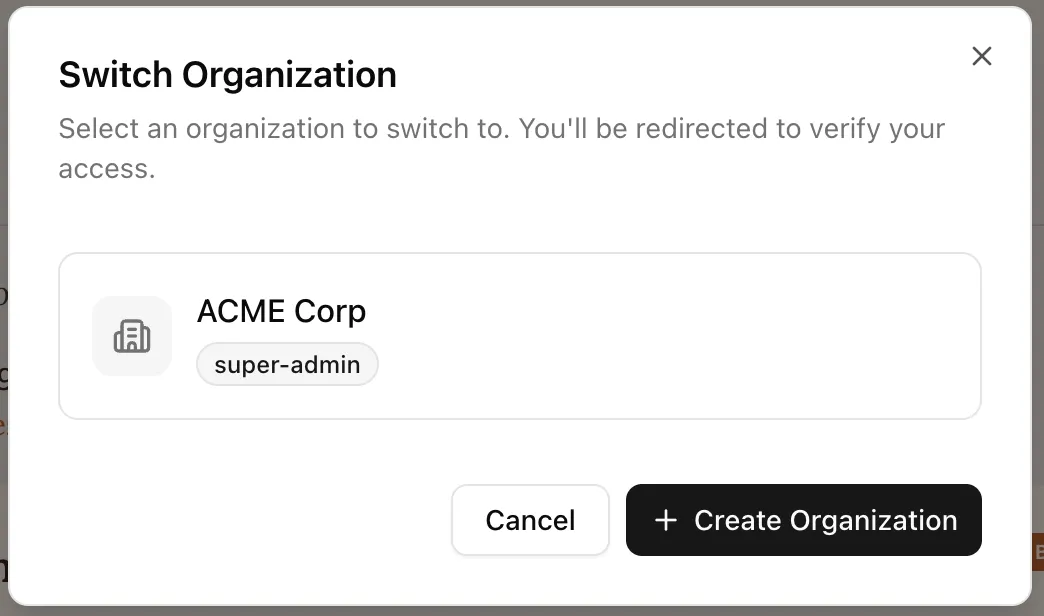
- Open the organization selector
After logging in, use the organization selector near the top of the app.

- Choose Create Organization
Open the selector and choose the option to create a new organization.
- Name the organization
Use the company name people expect to see when they receive an invite, then click Create.
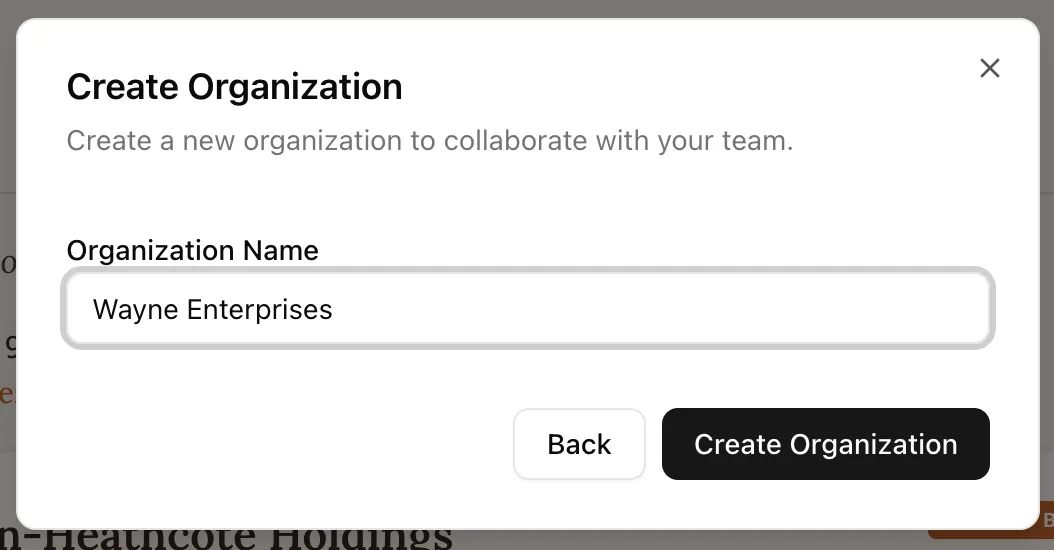
Before moving forward, check the organization selector and make sure it shows the organization you mean to configure.
Part III
The Terms
When you enter a real organization for the first time, Moneyball may ask you to review and accept the organization terms.
What you are accepting is how Moneyball works with company data. Before you continue, make sure your company is comfortable with that. If you are not the person who should accept on behalf of the company, stop here and bring in whoever owns that decision.
The flow is simple:
- Review the terms shown in Moneyball.
- If you are allowed to accept them for this organization, accept and continue.
- If you are not the right person, pause and bring in the right person.
Everyone you invite later will be asked to accept for themselves when they join.
For The Security And Legal Team
Moneyball keeps its security, privacy, and legal materials in the Trust Center.
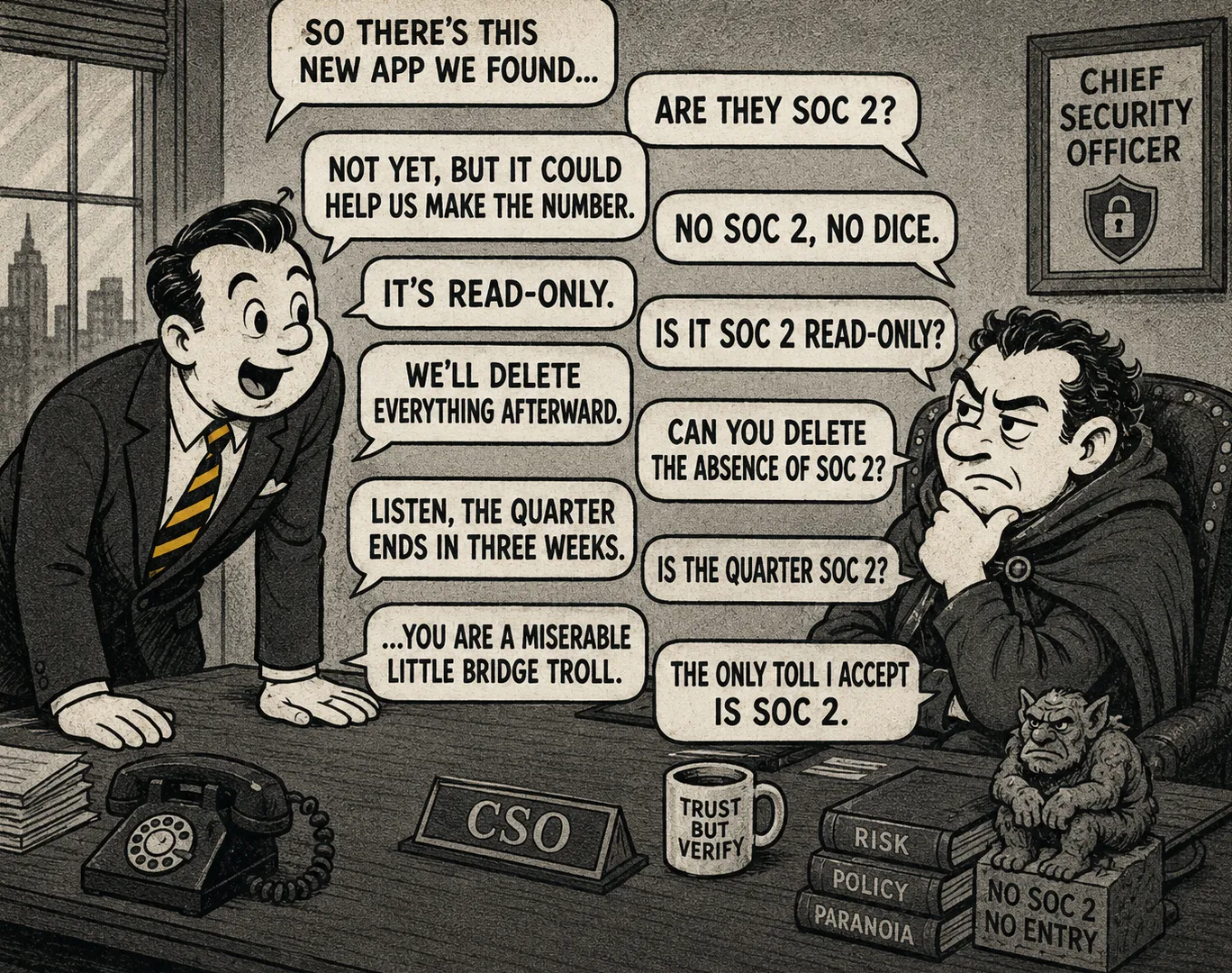
A quick answer to a question you may be asking: Moneyball does not have a SOC 2 report yet. We do follow SOC 2-aligned practices and are preparing for the audit process. We will keep a public security roadmap here: SOC 2 roadmap.
If your organization needs that level of assurance before approving a live SaaS connection, we have an air-gapped solution available through the Private Moneyball Run.
Part IV
Next: Data Pipeline
In the next lesson, we move into the Admin side of the application and open Data Pipeline.
That is where you will connect your CRM or spreadsheets to Moneyball and start getting the machine up and running.